
Running an Unsigned Application
Depending on your operating system, you may receive a security warning when you first launch the application. This is normal for applications that are not yet digitally signed.
Many independent developers and small software companies distribute applications without a digital signature because code-signing certificates can be expensive. This does not automatically mean an application is unsafe.
This guide was created for applications such as the Launcher, but the same steps apply to most unsigned applications on Windows, macOS, and Linux.
WARNING
Only continue if you downloaded the application from our official website or another trusted source.
These days, it's important to be cautious when downloading software from the internet. Never bypass security warnings unless you trust the source of the application, or examine the source code yourself.
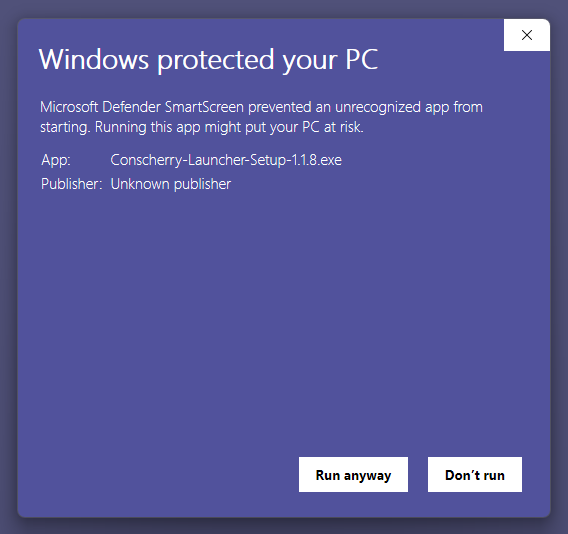
Windows
- Double-click the application.
- If you see a message that says "Windows protected your PC", click More info.
- Click Run anyway.
- The application will launch normally.
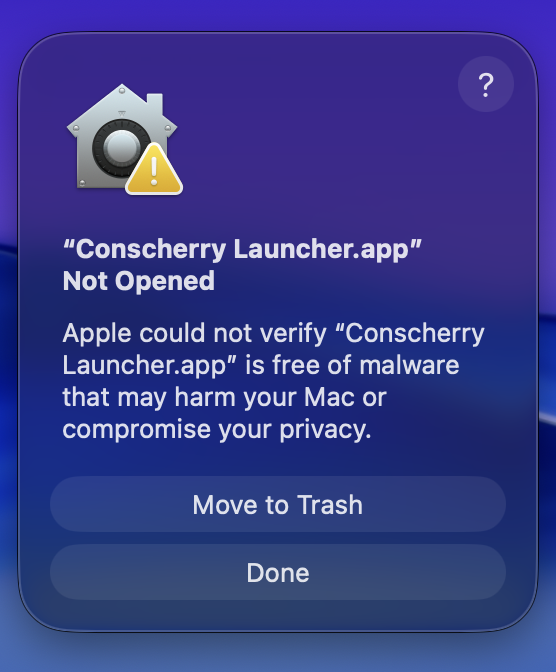
macOS
- Double-click the application.
- If macOS says the application cannot be opened because it is from an unidentified developer, close the message.
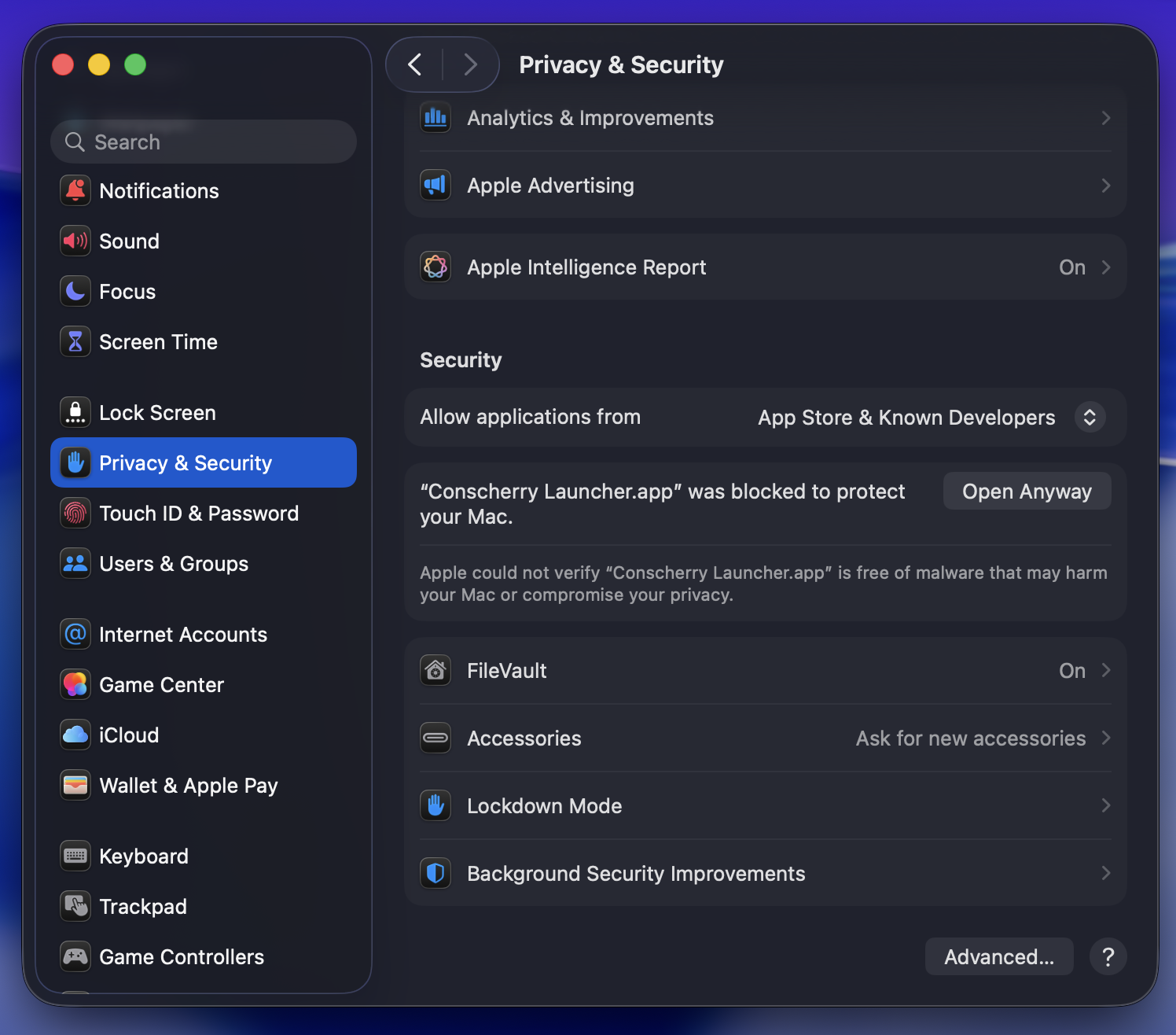
- Open System Settings.
- Go to Privacy & Security.
- Scroll down until you see a message about the blocked application.
- Click Open Anyway.
- Click Open when prompted.
You only need to do this the first time you launch the application.
Linux
Most Linux distributions require applications to be marked as executable before they can be run.
The exact steps may vary depending on your Linux distribution and desktop environment.
Option 1: Using Your File Manager
- Right-click the application.
- Select Properties.
- Open the Permissions tab.
- Enable Allow executing file as a program.
- Double-click the application to launch it.
Screenshot: We are working on providing a screenshot for this section.
Option 2: Using the Terminal
Open a terminal in the application's folder and run:
bash chmod +x YourApplicationName ./YourApplicationName
Replace YourApplicationName with the name of your application.
Screenshot: We are working on providing a screenshot for this section.
Need Help?
If you're still having trouble opening the application, we're happy to help. When contacting us, please include:
- Your operating system and version
- The exact error message or a screenshot
- The application version you're trying to run
Contact Us
- Help Page: https://conscherry.com/help
- Help Desk: https://helpdesk.conscherry.com
- Contact Form: https://conscherry.com/contact
- Discord Server: https://conscherry.com/discord